10 Tips for Choosing an Industrial Panel PC
Choosing an Industrial Panel Pc is less about selecting the brightest screen or fastest processor. It is about matching the hardware to the real conditions on your production floor. W. Edwards Deming, a quality-management expert whose ideas shaped modern manufacturing, is often quoted as saying, “Quality is everyone’s responsibility.” That principle matters here: a poor device choice can affect operators, maintenance teams, and production reliability. The quote is about quality broadly, not panel PCs specifically, but it offers a useful lens.
Start with the environment. Will the unit face dust, vibration, washdowns, or temperatures that swing between shifts? Consider the display under factory lighting, glove-friendly touch operation, mounting depth, and the connectors your existing equipment needs. A bright screen looks useful on a spec sheet. On a sunlit line, it must remain readable. Small details count.
The processor and operating system matter, but so do service life, component availability, and support. Check the manufacturer’s published ratings and test the interface with actual operators where possible. A model that works in a quiet office may struggle beside a vibrating conveyor. And a sealed enclosure can complicate repairs. That trade-off deserves a closer look.
This guide presents ten practical tips for comparing options, from display and ingress protection to connectivity and lifecycle support. No single specification settles the decision. The right Industrial Panel Pc is the one that fits your process, installation, and maintenance plan—not merely the one with the longest feature list. Even careful selection cannot remove every risk. It can make surprises less likely.
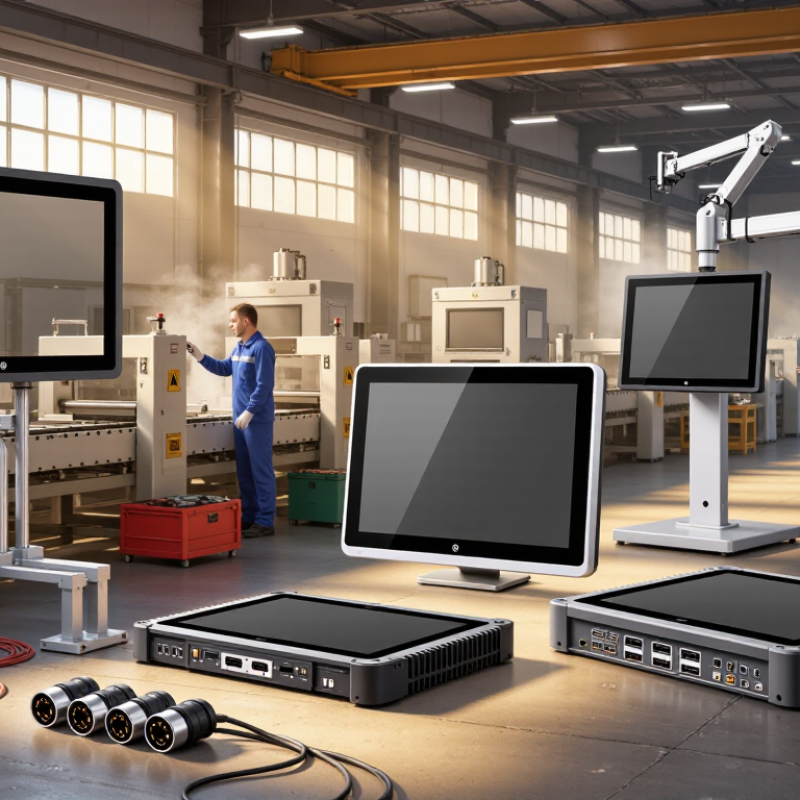
Define the Application and Operating Environment
Define the job before comparing specifications. Will operators read dashboards, enter recipes, or control a machine with gloved hands? A touchscreen beside a washdown station faces different demands from a display mounted inside a climate-controlled cabinet. Note viewing distance, lighting, mounting position, and whether workers need physical buttons. Details matter.
Describe the operating environment at its extremes, not on an average shift. Record temperature swings, humidity, dust, oil mist, water exposure, vibration, and cleaning methods. An IP rating under IEC 60529 indicates protection against specified ingress conditions; it does not guarantee resistance to every chemical or cleaning routine. Check the exact test conditions. Dust changes everything. A sunny loading bay may also need a brighter display, while a vibrating press may require secure mounting and tested connectors.
Use incident data as context, not as proof that a panel PC prevents injuries. The U.S. Bureau of Labor Statistics reported 2.6 million nonfatal workplace injuries and illnesses in private industry in 2023. That figure covers many causes and workplaces, not panel computers specifically. Still, it reinforces the value of assessing real operator conditions. One detail is easy to miss: the environment can change during maintenance, seasonal shifts, or production-line cleaning. A checklist helps, but it cannot replace a site walk-through.
Assess Display, Touchscreen, and User Interface Needs
Choose a display for the actual work area, not just the equipment brochure. A screen near a sunlit loading bay needs more brightness than one inside a dim control room. Check whether operators can read small alarm text from their normal standing distance. Reflections matter. A glossy panel can turn overhead lights into a mirror. Test the screen at the installation angle, with the room lights on. If colors carry meaning, confirm that warning colors remain distinct under expected lighting.
Touchscreen choice depends on how people work. Operators wearing thick gloves may struggle with some capacitive screens, while resistive touch can suit gloved or stylus input. Try the controls with wet fingers, if that is part of the job. Small buttons are easy to miss on a vibrating machine. Give frequently used actions generous targets and leave space between critical controls. Keep the interface readable at a glance, with clear labels and a sensible path to alarms. It is easy to over-specify. A crowded screen can slow people down, even when every feature seems useful. Test a realistic task with the people who will use the panel; their first hesitation often reveals a design problem.
Match Processing Power, Memory, and Expansion Options
Choose processing power from the software’s real workload, not its peak specification. A panel PC running a dashboard and a few sensors may need far less CPU capacity than one handling machine vision or several data streams. Check sustained performance under heat, too; a processor that throttles inside a warm cabinet can disappoint. Benchmarks help, but testing the intended application is more reliable.
Memory deserves the same practical check. Consider the operating system, control software, browser interface, and logging tools together, then leave headroom for updates and added tasks. If memory is nearly full during a normal shift, response delays can appear at the worst moment. Small details matter. Storage is separate: confirm capacity, write endurance, and access for replacement.
Expansion options should fit the machine and its likely next revision. Count the Ethernet ports, serial connections, USB devices, and isolated digital I/O you need. Then verify connector locations and available slots. A spare slot sounds useful, but not if a card blocks airflow or cables cannot bend cleanly. Check power and thermal limits, software support, and service access before adding components. Plans change; a new sensor may arrive after installation.
Check Durability, Mounting, and Environmental Protection
A rugged panel PC must survive its actual installation, not just look industrial. Check the enclosure rating, operating temperature, and specified shock and vibration limits against conditions on your production floor. IEC 60529 defines the IP code: IP65 is dust-tight and resists water jets, while IP67 adds a temporary immersion test up to one metre for 30 minutes. That does not make every IP67 unit suitable for repeated washdowns. Water finds seams.
Mounting deserves equal attention. A flush-mounted unit may need a gasket and a precisely cut opening; a suspended arm needs secure fasteners and support for the screen’s weight. Check the manufacturer’s installation limits and leave clearance for heat to escape. A sealed enclosure can trap heat, especially beside a furnace or in a crowded cabinet. Measure the ambient temperature where the PC will sit, not across the room.
Ask for test details, not just the word “rugged.” IEC 60068-2-6 describes vibration testing, but the test severity and duration matter; a passing result alone may not match your machine’s vibration profile. Inspect cable glands, connector covers, and mounting points during maintenance. I would still verify the proposed unit on-site, because real dust and vibration are messy. A rating is evidence, not a guarantee.
10 Tips for Choosing an Industrial Panel PC — Check Durability, Mounting, and Environmental Protection
Environmental protection: a guide to IP water-ingress ratings
The chart summarizes the water-protection meanings of IPX0–IPX8 under IEC 60529. These levels are categories, not a linear measure of performance. Check the complete IP rating and the manufacturer’s test conditions, and separately confirm operating temperature, chemical resistance, and mounting requirements for your installation.

